Introduction
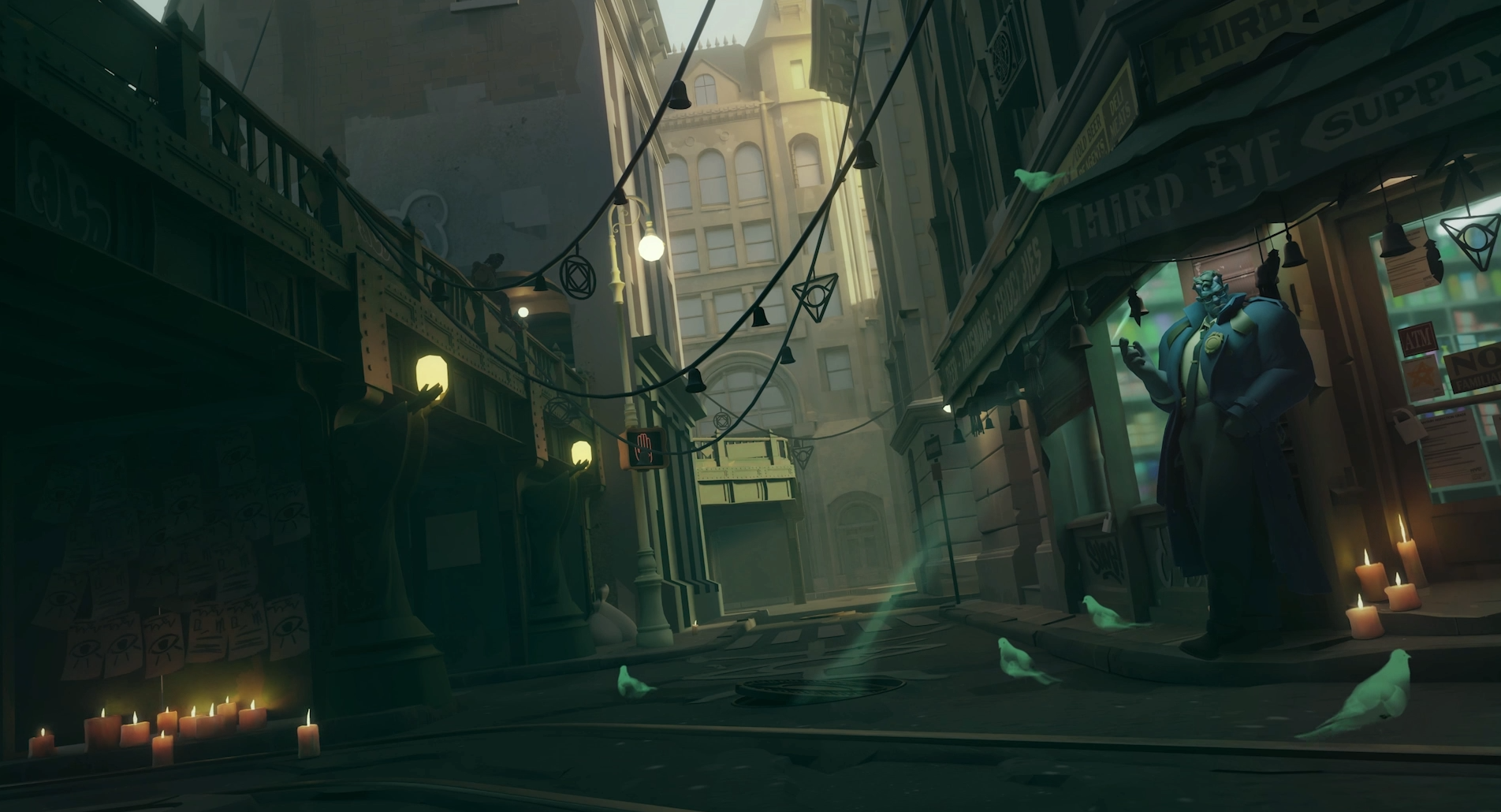
Deadlock -Valve’s newest game- has drawn a lot of attention from gamers. The game wasn’t even formally announced and yet it had well over 10,000 players playing the closed beta. If these numbers keep up, it’s safe to say that Deadlock is going to be the next big hit in the world of gaming. If you’ve been lucky enough to get a chance to play the game, we’ve got the best Deadlock settings and options for you so that you can get to playing as quickly as possible!
Deadlock isn’t even in open beta yet. The game’s performance may be buggy, and may vary wildly between different systems. We will keep this guide updated just like our other guides, but bear in mind that you’re not playing anything that’s close to a finished product right now.
Best Video Settings for Deadlock
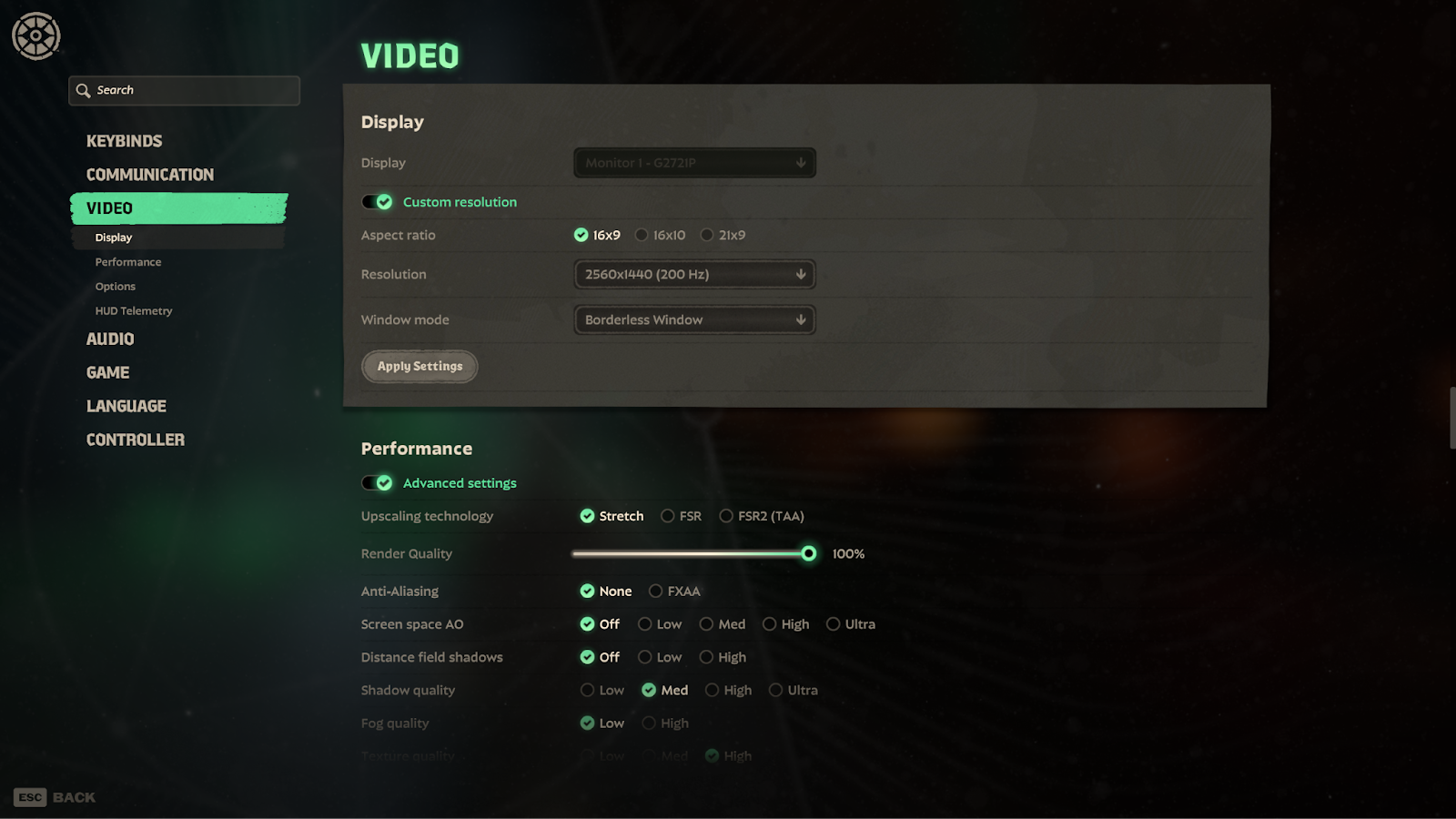
Deadlock is a game that is focused on competitive gameplay, so it’s important that you achieve a good balance between visibility and framerates. Having high framerates is very important for competitive gaming, so our settings will aim for as many frames as possible without making the game look unplayable.
Note: Also, make sure to turn on Reduce Flashing Effects, scroll down and you will see it below the Options tab.
| Setting | Value | More Info |
|---|
| Custom Resolution | On | By default, Deadlock will catch your native resolution, but if you want to play on a custom res like 4:3, for instance, you need to turn this on. |
| Resolution | Native / Preference | We recommend native, but if you want to play at a different resolution, you obviously can. Just make sure you have the highest refresh rate selected. |
| Window Mode | Preference | No difference in performance between Borderless and Fullscreen. Choose Borderless if you Alt Tab a lot. |
| Advanced Settings | On | This will allow you to tweak the settings. |
| Upscaling Technology | Stretch | Only use Upscaling if you still have a low framerate after applying these settings. Read our guide on Upscaling for more info |
| Render Quality | 100 | Use upscaling instead of decreasing this if you are getting low frames and want to get more. |
| Anti-Aliasing | Off (FXAA if you’re using upscaling) | |
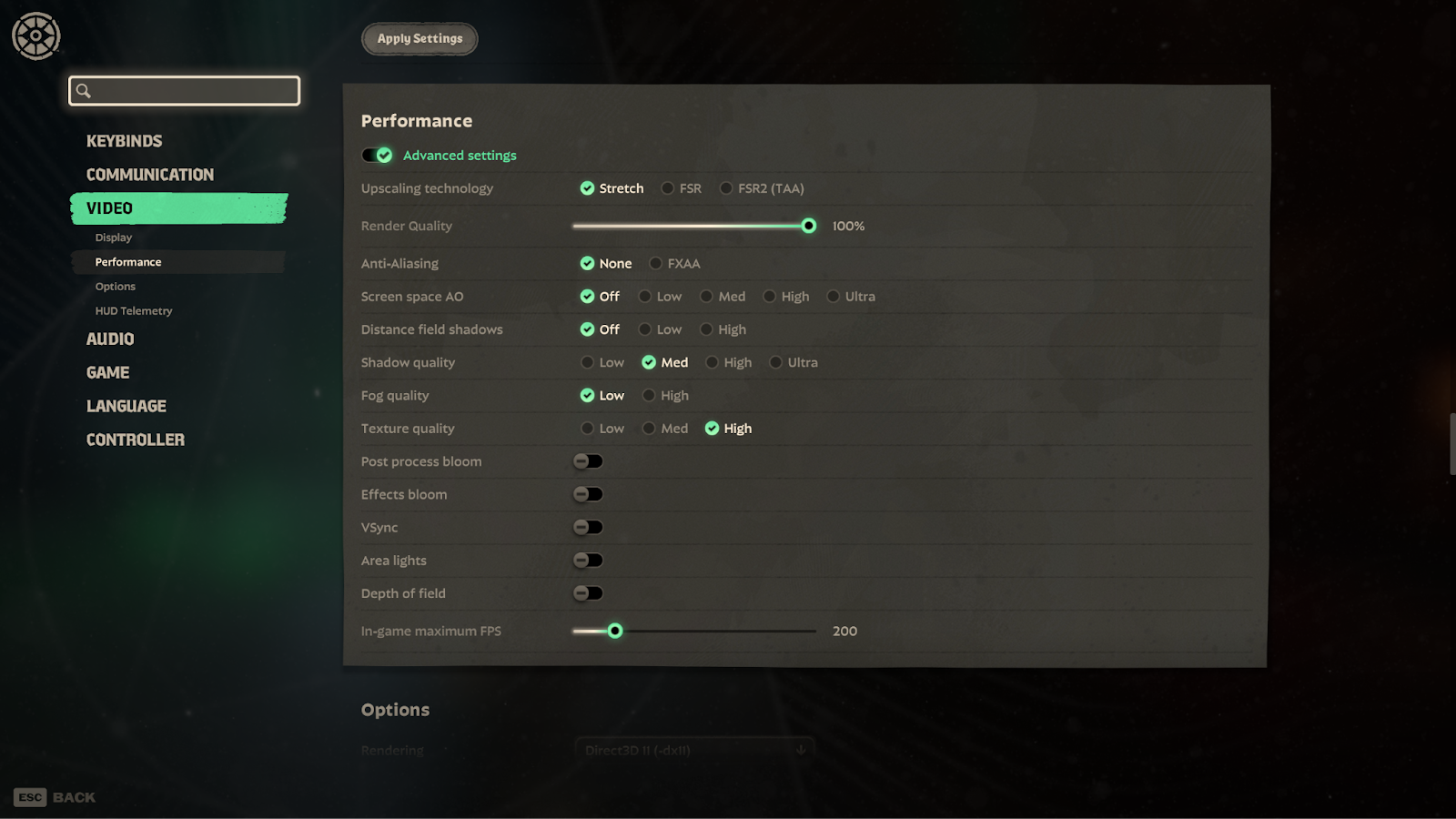
| Screen Space AO | Low | Eye candy settings that make shadows and reflections look more realistic. It comes with a performance cost, though. |
| Distance Field Shadows | Low | Another eye candy setting with performance cost. Low offers the best performance. |
| Shadow Quality | Medium | Good balance between performance and quality. Setting it Low makes the shadows look inconsistent and jarring. Shadows sometimes help in locating enemies. |
| Fog Quality | Low | Can cause visibility issues in-game. Low is the competitive option. |
| Post Process Bloom | Off | It tanks fps and bloom can make the image appear blurrier, which we want to avoid. |
| Effects Bloom | Off | Same as with the other bloom settings. Leave this off. |
| V-Sync | Off | Infamous for adding input lag. Keep it off. |
| Area Lights | Off | Improves lighting but costs performance. |
| Depth of Field | Off | This blurs objects outside of the focal pane. It can make games look more realistic, but we don’t need blur of any kind for competitive gameplay. |
| In-Game Maximum FPS | Monitor’s Refresh Rate / Unlimited | Some people like to cap this to their monitor’s refresh rate for a more stable performance. However, if you have frames to spare, you can always raise this. |
| Displacement Mapping | | Off. |
| Post Process Bloom | | Off. |
| Effects Bloom | | Off. |
| V-Sync | | Off. V-Sync introduces input lag, which is something you want to avoid in competitive games. |
Best Game Settings for Deadlock
A lot of these settings are personal, but we’ll go over some general tips and tricks to help you get started.
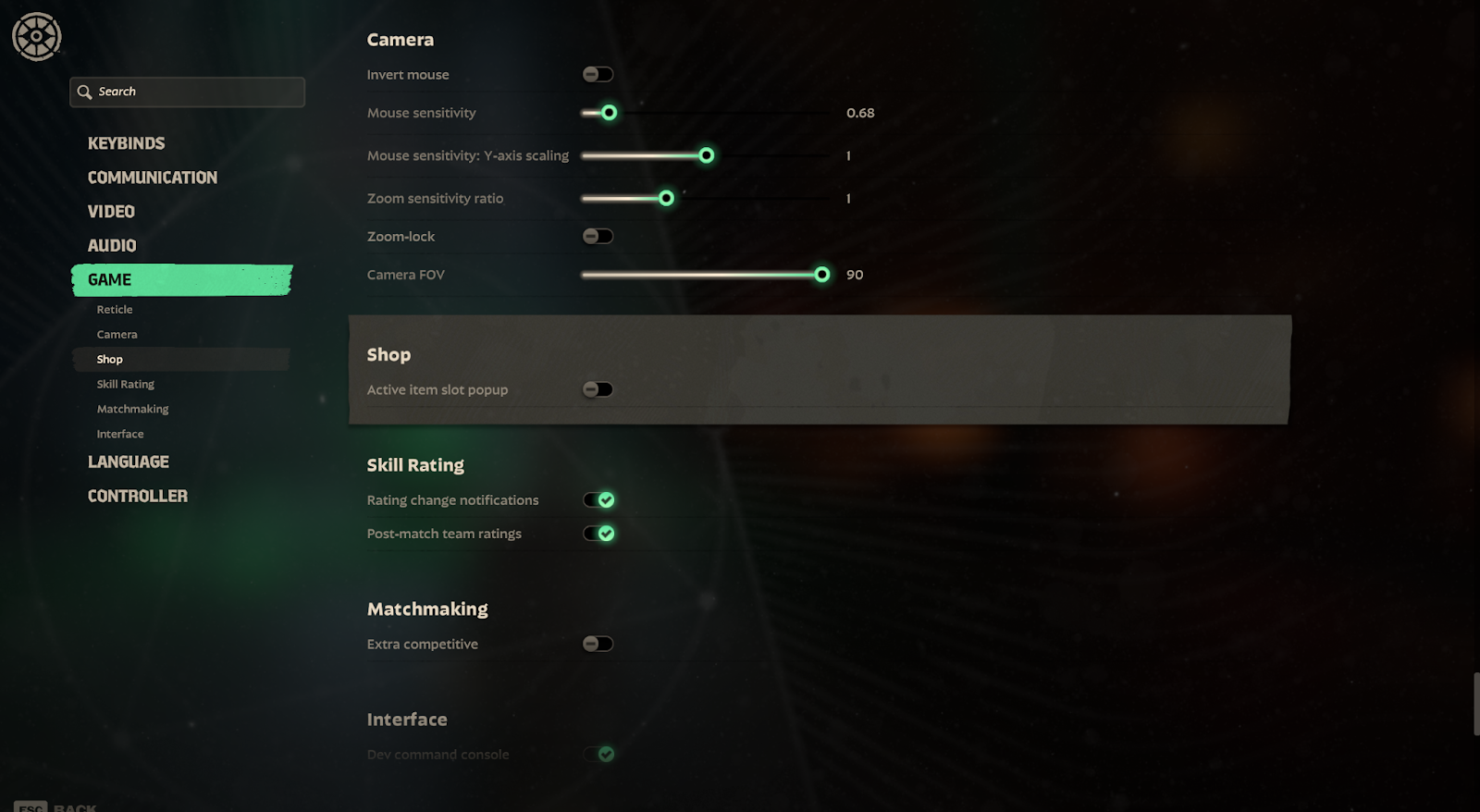
| Invert Mouse | Off, unless you want your character to look up when you move your mouse down. |
| Zoom-lock | This is a personal setting. When enabled, you only need to press a button once in order to zoom in. When disabled, you need to hold your zoom button and your character zooms out as soon as you let go of said button. |
| Mouse Sensitivity | This is completely personal. Make sure to go for a sensitivity that allows you to precisely aim though. Higher definitely isn’t better with sensitivity; there is an upper limit. You can learn more about finding your best sensitivity in our article. |
| Zoom Sensitivity Ratio | We recommend 1 here, as that feels the most natural. |
| Camera FOV | We prefer 90. That’s a pretty narrow FOV as-is, so there’s no need to narrow it down even further. |
Best Crosshair Settings for Deadlock
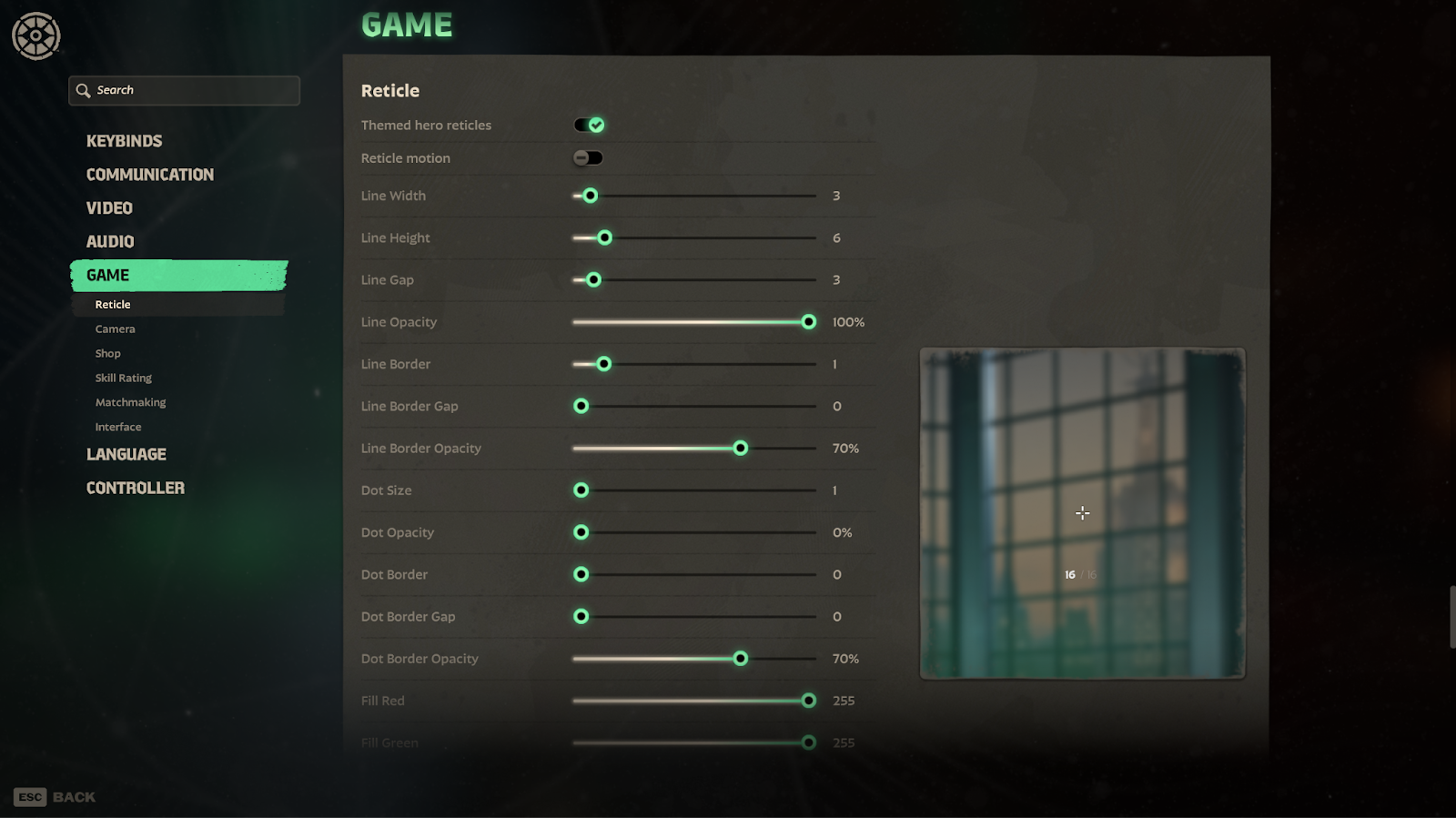
Deadlock allows you to customize your crosshair. Crosshairs are -as you know- completely personal, but there are some guidelines to follow. You don’t want your crosshair to be too thick, for starters. If it is, it can obscure enemies and other gameplay elements. If it’s too small, you’ll not be able to find it in the heat of battle, which can cause you to miss shots.
To help you get started, we’ve included a screenshot of a good ‘starting point’ crosshair for you to experiment with.
Conclusion
Deadlock is still in active development and not a finished product at all. As such, we should expect to see the performance of the game vary wildly between different patches. As the game is not properly optimized right now (which isn’t a dig at Valve: this is a beta test after all) it can be difficult to get consistent framerates. However, our guide should be a good starting point for getting the most out of the game right now.
Former semi-pro gamer turned writer, product reviewer, and community manager.

